 5 months ago
115
5 months ago
115
We may earn from vendors via affiliate links or sponsorships. This might affect product placement on our site, but not the content of our reviews. See our Terms of Use for details.
If you're tired of paying for Microsoft Office features you don't use, here are free alternatives to Word you can download and start using today.
Microsoft Word has its fans, but if you find one person who loves it, you’ll likely find several who don’t. From redesigns that hide familiar menu items to overly complex and often unused features, there’s a lot to improve in a simple word processor that Microsoft Word can’t provide because of its complicated design.
If you don’t need all the features that Microsoft Word offers, it can be difficult to justify paying the price for the software, especially in a small business setting where all you need is a basic word processor. So, instead of paying for features you won’t use, consider one of these five free Microsoft Word alternatives instead.
- Best overall free Microsoft Word alternative: Google Docs
- Best for customization: LibreOffice Writer
- Best for Apple users: Apple Pages
- Best for automation: Zoho Writer
- Best for complex documents: Apache OpenOffice Writer
Comparing free alternatives to Microsoft Word
| Google Docs | 4.44 | Web, iOS, Android |
|
| LibreOffice Writer | 4.31 | Windows, macOS, Linux |
|
| Apple Pages | 4.08 | macOS, iOS |
|
| Zoho Writer | 4.04 | Web, iOS, Android |
|
| Apache OpenOffice Writer | 3.85 | Windows, macOS, Linux |
|
Google Docs: Best overall free Microsoft Word alternative
My rating: 4.44 out of 5
 Image: Google
Why I chose Google Docs
Google Docs is arguably the most popular alternative to Microsoft Word because it is free for anyone with a Google account. Its popularity also stems from its accessibility, low learning curve, and built-in integration with the Google Workspace ecosystem. For businesses that rely on Gmail, Drive, and Meet, Google Docs is a natural choice that facilitates teamwork more easily.
Multiple users can work on the same document simultaneously, seeing edits, comments, and suggestions instantly. The platform’s template library offers everything from business proposals to project briefs. Additionally, the inclusion of Google Gemini now allows you to generate images and text with a simple prompt. This makes Google Docs the most seamless and reliable free alternative to MS Word available.
Pros and cons
|
|
Pricing
- Free access with a Google email or personal plan and Google’s Workspace plans.
Google Workspace plans
- Starter: $8.40 per user/month, billed monthly; or $7 per user/month, billed annually
- Standard: $16.80 per user/month, billed monthly; or $14 per user/month, billed annually
- Plus: $26.40 per user/month, billed monthly; or $22 per user/month, billed annually
- Enterprise Plus: $42 per user/month, billed monthly; or $35 per user/month, billed annually
Features
- Content generation and editing with Google Gemini
- Real-time co-authoring and commenting
- Auto-save and version tracking via Google Drive
- Offline access through Chrome extension
- Template gallery for resumes, reports, and proposals
- Integrates with third-party apps, like CRMs and document signing tools
- Pairs with Google Meet, Sheets, and Slides
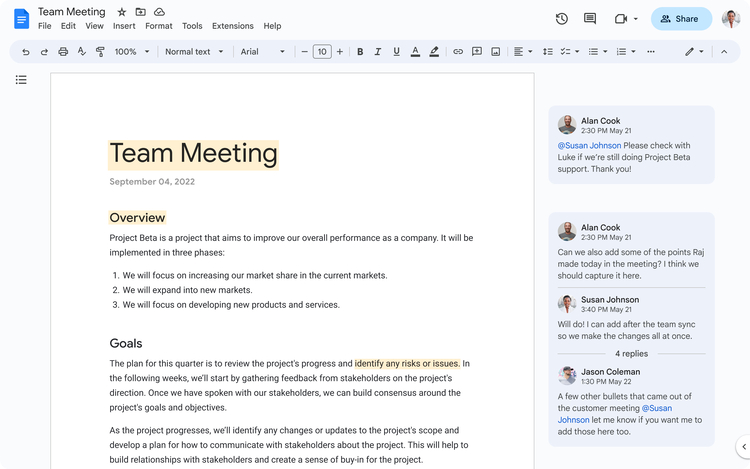 Collaborate with team members using Google Docs. (Source: Google)
LibreOffice Writer: Best for customization
My rating: 4.31 out of 5
 Image: LibreOffice
Why I chose LibreOffice Writer
For those seeking something different from traditional enterprise software, LibreOffice offers a community-driven, open-source platform dedicated to making office productivity apps accessible to all. Writer is part of the LibreOffice suite, which includes tools comparable to Microsoft Word, Excel, and PowerPoint. However, what sets LibreOffice Writer apart is its depth of customization.
Users can create macros, modify toolbars, and install extensions to tailor the editor to specific workflows. For rigorous research, it supports mail merges, bibliographic references, and indexing, features typically reserved for premium software. Additionally, the open-source nature of LibreOffice ensures that there is no hidden data sharing or cloud dependency, making it an excellent option for IT professionals or privacy-conscious organizations.
Pros and cons
|
|
Pricing
- All LibreOffice productivity apps are available to users at no cost.
Features
- Support for .docx, .odt, .rtf, and .pdf formats
- Macro recording, mail merge, and custom templates
- Add-on extensions for productivity and style
- Strong layout tools for multi-section documents
- Spellchecker, thesaurus, AutoCorrect, and hyphenation
- Drag-and-drop supported
- Accessibility checks for links and references
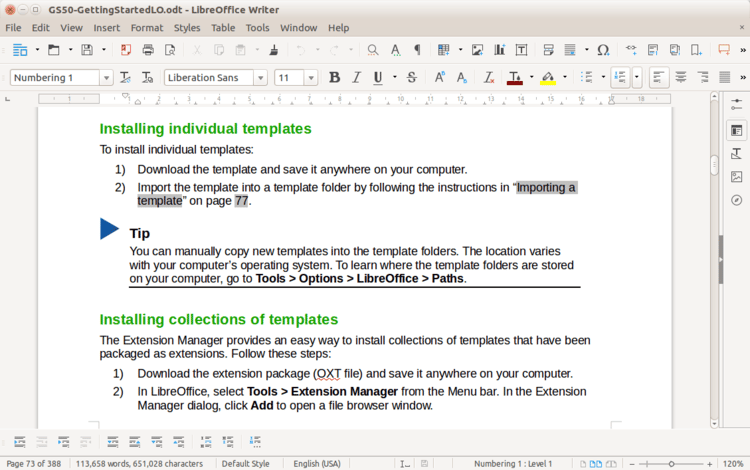 Download templates for custom formatting in LibreOffice Writer. (Source: LibreOffice)
Apple Pages: Best for Apple users
My rating: 4.08 out of 5
 Image: Apple
Why I chose Apple Pages
While most alternatives to Microsoft Word work across different ecosystems, Apple Pages is a free word processor designed for users deeply integrated into the Apple ecosystem. It’s available on macOS, iOS, and iPadOS, and comes pre-installed on most devices. However, non-Apple users can also access it via the web using iCloud, because it offers a unique, design-oriented interface.
The drag-and-drop layout tools, built-in typography options, and ready-made templates make creating attractive documents simple. They are ideal for small businesses that need professional-looking materials without investing in expensive design software. With iCloud synchronization, collaboration through shared iCloud links allows colleagues to comment and edit in real time. For teams that also use Keynote or Numbers, the cross-application integration helps streamline presentation and spreadsheet workflows.
Pros and cons
|
|
Pricing
- Apple Pages is pre-installed on iOS devices and can be downloaded for free from the App Store.
Features
- Real-time collaboration through iCloud
- In-text translations for over 100 languages
- Dozens of professional templates
- Integration with Keynote and Numbers
- Drag-and-drop image and design tools
- Apple Pencil support for iPad users
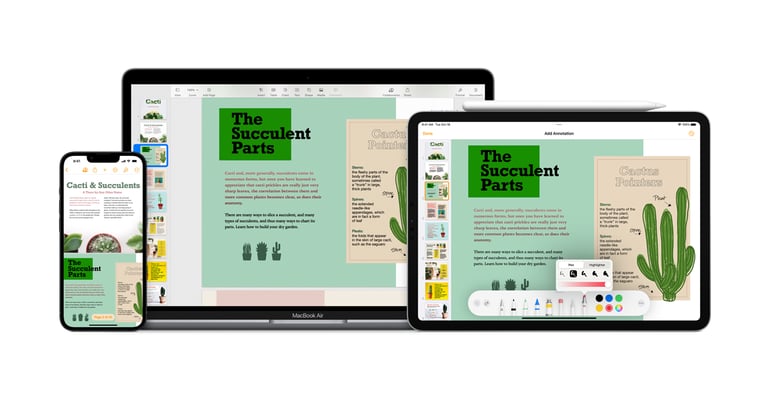 Access Apple Pages across iOS devices. (Source: Apple)
Zoho Writer: Best for automation
My rating: 4.04 out of 5
 Image: Zoho
Why I chose Zoho Writer
Although Zoho is best known for its CRM and business software, Zoho Writer stands out as a top alternative to Microsoft Word for teams seeking intelligent, automated document workflows. As part of the Zoho Workplace suite, it offers email, spreadsheets, and collaboration tools within a cloud-based platform. It integrates with Zoho CRM, Slack, Dropbox, and Google Drive, providing users with flexibility in where their content is stored.
However, my favorite feature of Zoho Writer is the AI assistant, Zia, which helps identify grammar issues, simplifies phrasing, and suggests tone adjustments. Zoho Writer also supports workflow automation, allowing businesses to route documents for review or approval based on preset rules. Therefore, Zoho Writer is best for organizations that handle contracts, reports, or proposals that require multiple sign-offs.
Pros and cons
|
|
- Zoho Writer is free for individuals and businesses, but automations have add-on credit pricing as follows:
| 0–4,000 | $0.05 |
| 4,001–9,000 | $0.02 |
| 9,001–200,000 | $0.01 |
Features
- AI assistant (Zia) for grammar, tone, and readability
- Automated review and approval workflows
- Real-time collaboration with tracked changes
- Integrations with Zoho CRM, Slack, and Drive
- Cloud storage with permission control
- Fillable forms and document signing
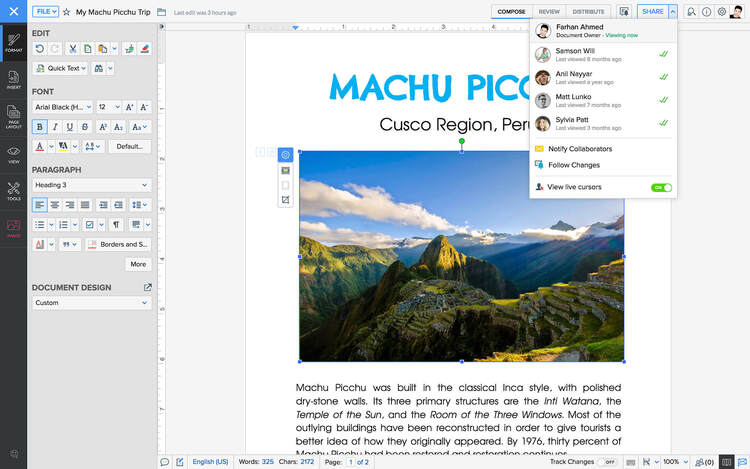 Zoho Writer makes it easier to share documents within a team. (Source: Zoho)
Apache OpenOffice Writer: Best for complex documents
 Image: Apache
My rating: 3.85 out of 5
Why I chose Apache OpenOffice Writer
Apache OpenOffice Writer has long been a trusted option for users who value simplicity, stability, and offline reliability. It’s particularly well-suited for professionals handling long-form or complex documents, such as technical manuals, academic papers, or policy guides. Writer also provides a robust set of tools for managing structure, including master documents, bibliographies, tables of contents, and cross-references.
Although its interface appears outdated and its development might be limited, Apache OpenOffice Writer remains a reliable tool for professionals who need to work securely without depending on cloud infrastructure. Because it’s entirely offline, OpenOffice Writer is perfect for environments where data privacy and local storage are crucial. It also operates on Windows, macOS, and Linux, making it a dependable cross-platform choice for teams that require trustworthy, open-source software.
Pros and cons
|
|
Pricing
- Apache OpenOffice offers free, open-source software that doesn’t require any subscriptions.
Features
- Table of contents and references
- Master document support for lengthy projects
- Advanced styles, tables, and formatting tools
- Multi-platform compatibility (Windows, macOS, Linux)
- Fully offline document creation and editing
- HTML, PDF, and MediaWiki formats
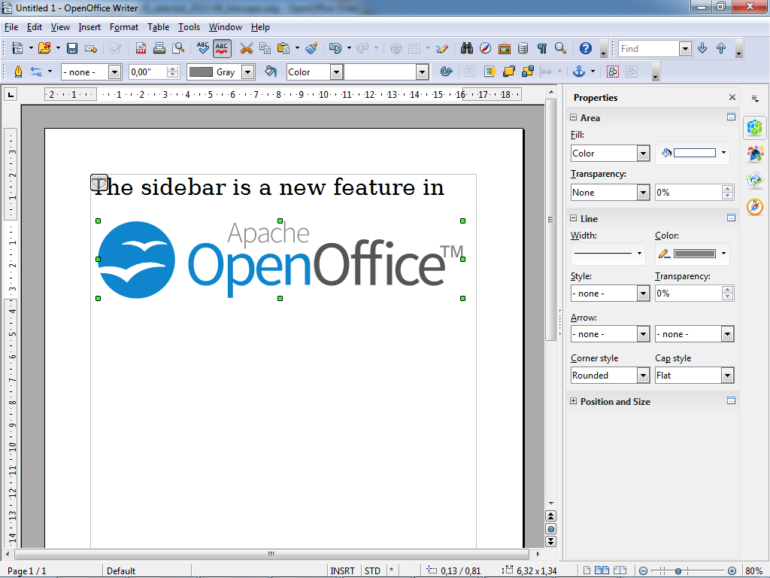 Create complex documents with Apache OpenOffice Writer. (Source: Apache OpenOffice)
Key features to look for in MS Word alternatives
When selecting a Microsoft Word alternative, the following features make each tool a strong contender for anyone aiming to create, edit, and collaborate on documents without depending solely on Microsoft Word.
- File compatibility: Essential for smooth transitions from Microsoft Word, ensuring all your existing .docx files can be opened, edited, and saved without losing formatting, allowing you to collaborate effortlessly with Word users.
- Offline access: Crucial for productivity on the go, allowing you to continue working on documents even when an internet connection isn’t available.
- Templates availability: Helps you jumpstart new projects with professionally designed documents, saving time and effort that you would typically spend formatting in Word.
- Robust formatting: Ensures that your documents maintain their intended appearance, including styles, images, and fonts, across different devices and when shared.
- Real-time collaboration: A core feature for modern teams, enabling multiple users to work on the same document simultaneously with tracked changes and comments, offering an alternative to Word’s collaboration tools.
- Integrations: Extends the functionality of the alternative, allowing it to work seamlessly with your preferred cloud storage and other productivity applications.
- Cloud and local storage: Provides flexibility in how you save your work, offering the convenience and accessibility of cloud storage or the security and control of local storage.
How to choose the best free alternatives to Microsoft Word
Before selecting a Microsoft Word alternative, it is essential to gather as much information as possible about different platforms and how to evaluate them effectively. I’ve included a video and a step-by-step guide below that provide an overview of the top platforms and how to assess them.
Step 1. Assess your specific needs
Begin by evaluating your business needs when selecting word processing software. For example, consider the features you need most, such as advanced document formatting (e.g., headers, footers, and styles), robust collaboration tools that enable multiple users to work on a document simultaneously, and the ability to handle various file formats (such as .docx, .pdf, and .odt). Additionally, consider exploring the availability of professional templates for resumes, reports, and presentations that can enhance your productivity.
Step 2. Conduct thorough research
Take the time to investigate the options available in the market and on this list. Consider popular options like Google Docs, which offers seamless cloud-based collaboration; LibreOffice Writer, renowned for its extensive features and open-source accessibility; Apache OpenOffice Writer, a reliable alternative for offline use; and Zoho Writer, which integrates well with other Zoho productivity tools. Explore each option to understand its strengths and weaknesses relative to your needs.
Step 3. Read user reviews and compare features
Once you have a shortlist, read user reviews to gain insights into the experiences of others who have used the software. Look for feedback on performance, ease of use, and customer support. If possible, take advantage of free trials or demo versions to test the software firsthand. This hands-on experience will help you gauge how well each option fulfills your requirements in practice.
Step 4. Consider key factors
When making your final decision, evaluate important factors, such as compatibility with Microsoft Word formats, to ensure smooth transitions when sharing documents with others who use Word. Additionally, consider the software’s integration capabilities with various cloud storage services, such as Google Drive, Dropbox, or OneDrive, as well as its ability to access and save documents across multiple devices.
Lastly, check the software’s commitment to ongoing support, updates, and improvements, as these will significantly affect its usability and security over time.
Review methodology
In evaluating Microsoft Word alternatives, I considered five essential criteria: the availability of a free subscription, compatibility with Microsoft Word formats, offline access, the variety of templates offered, and the ability to serve different business needs. Each tool included in my comparison meets these foundational requirements.
To further assess their strengths, I analyzed advanced features and overall functionality. This involved examining how effectively each option addresses user needs in terms of functionality, ease of use, formatting capabilities, and other pertinent factors. As a result, I was able to determine the suitability of each tool for various user types and specific requirements. The final list highlights the best use cases for each alternative, along with a rating based on the established criteria.